# Set up CalDAV on your iPhone or iPad
When you add your CalDAV account, you can sync your Calendars with your iOS device.
## Add your CalDAV account
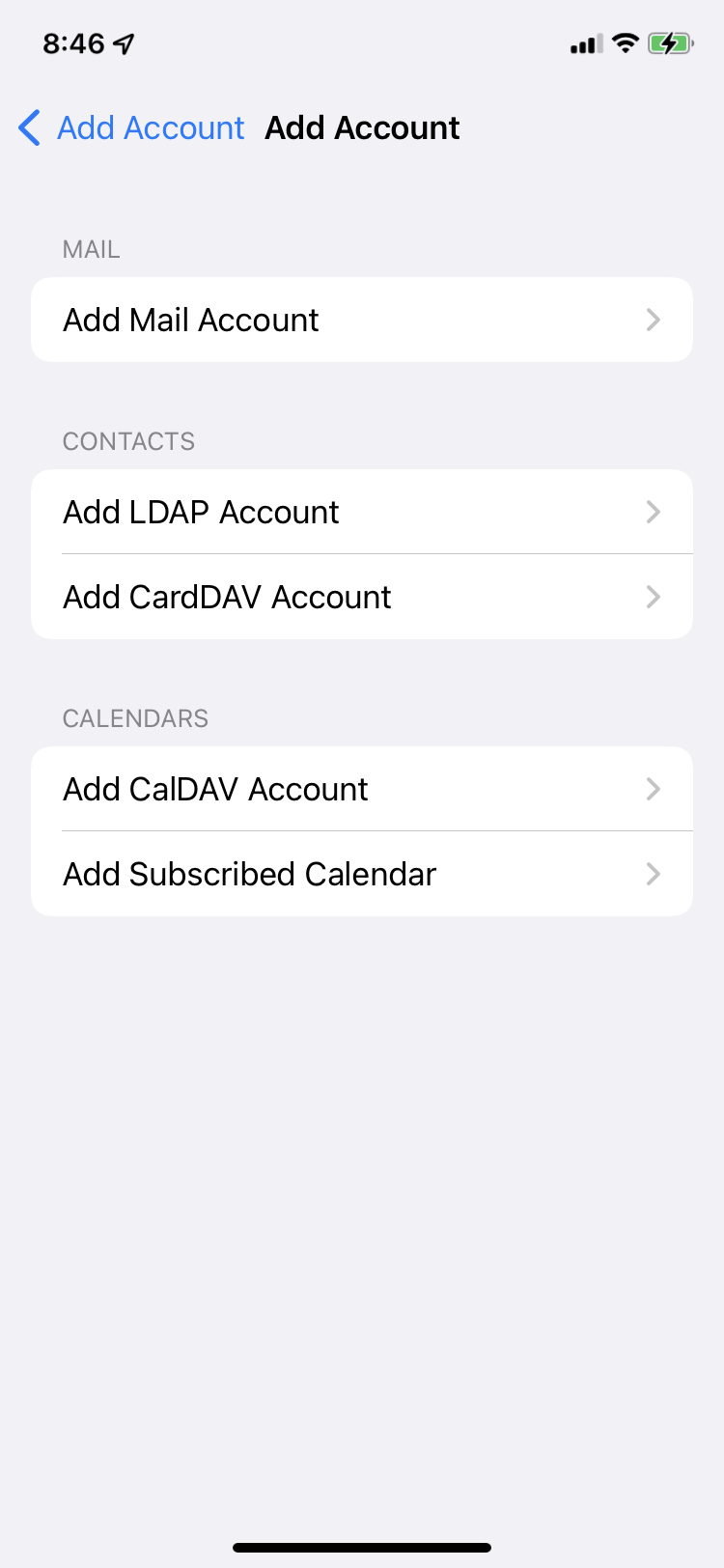
##### Tap Settings > Calendar > Add Account > Other.
If you're adding another account, tap Accounts > Add Account.
##### Tap Add CalDAV Account.
## Enter CalDAV information
Enter information as below, then tap Next.
| **Server**
| **my.mailhappen.com** |
| **User Name**
| ***your email address***
|
| **Password**
| ***your email address***
|

## Sync your content
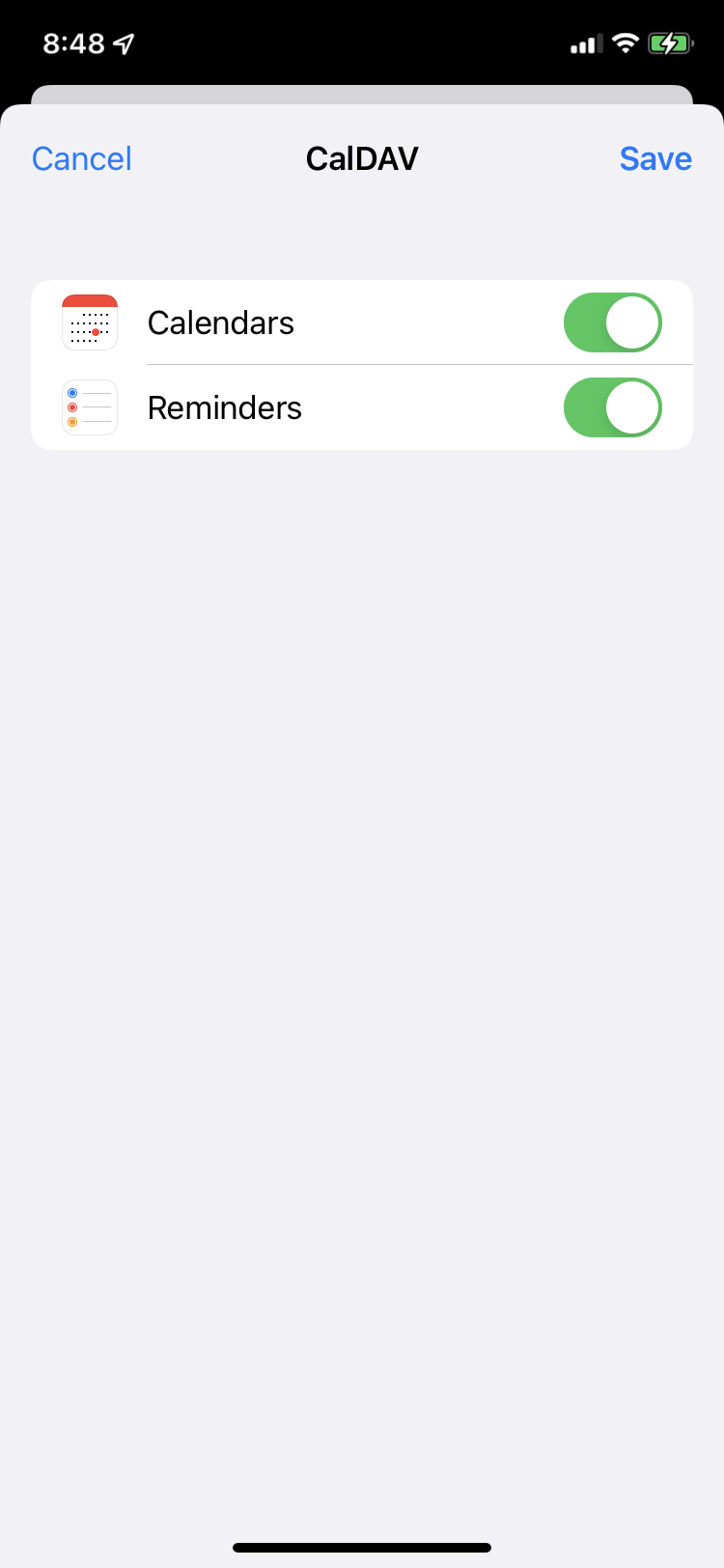
You can sync Calendars and Reminders. When you're finished, tap Save.
## Done
The CalDAV account is added. You can use Calendar App to see all your events.